
How to use the free QR site timesheet
Everything in plain English, from setting up your first site to getting the hours ready for payroll. Setting up takes about 10 minutes. Your workers need nothing but a phone with a camera.
1. What you need
- A PaySorted account. It's free to sign up and you don't need a card. Sign up here.
- Your phone (to set the site's location while you're standing on it).
- A printer, to print the A4 QR poster. Any home printer is fine.
- Your workers' names. That's all: no email addresses, no apps, no logins for them.
2. Setting up (you do this once)
Step 1: Open Site hours
Log in to PaySorted on your phone or computer. Tap More, then Site hours. (Or go straight to paysorted.uk/site-hours.)
Step 2: Add your site
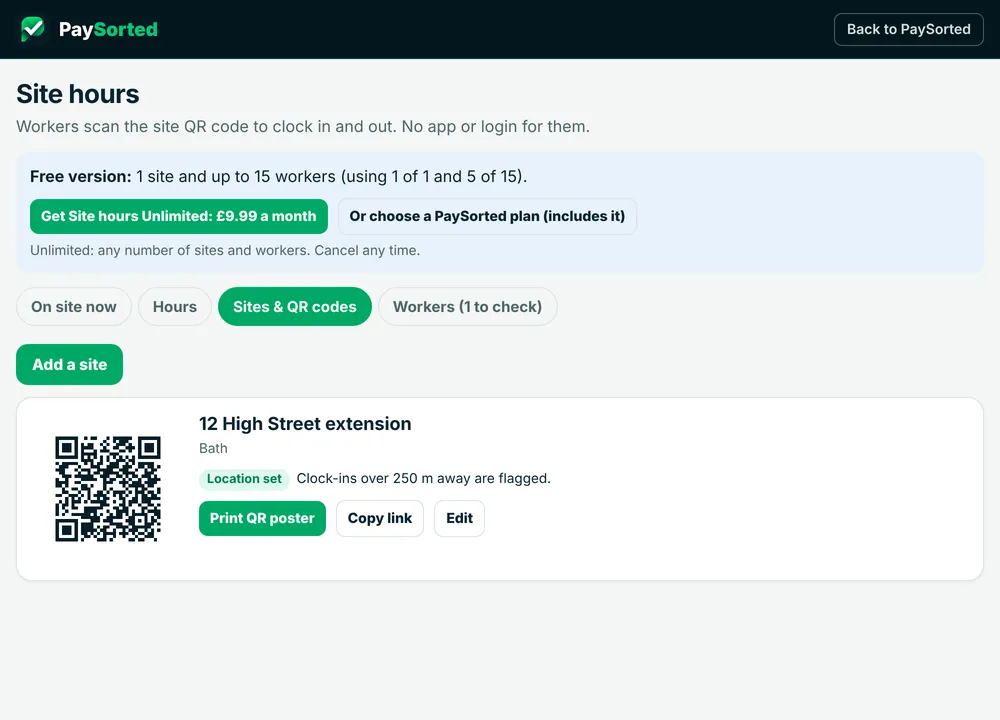
- Tap Add a site.
- Type a name your workers will recognise, like 12 High Street extension.
- Stand on the site and tap Use my location. Your phone may ask if it can share your location: tap Allow.
- Leave "Flag clock-ins further away than" on 250 metres unless the site is very big.
- Tap Save.
Step 3: Add your workers
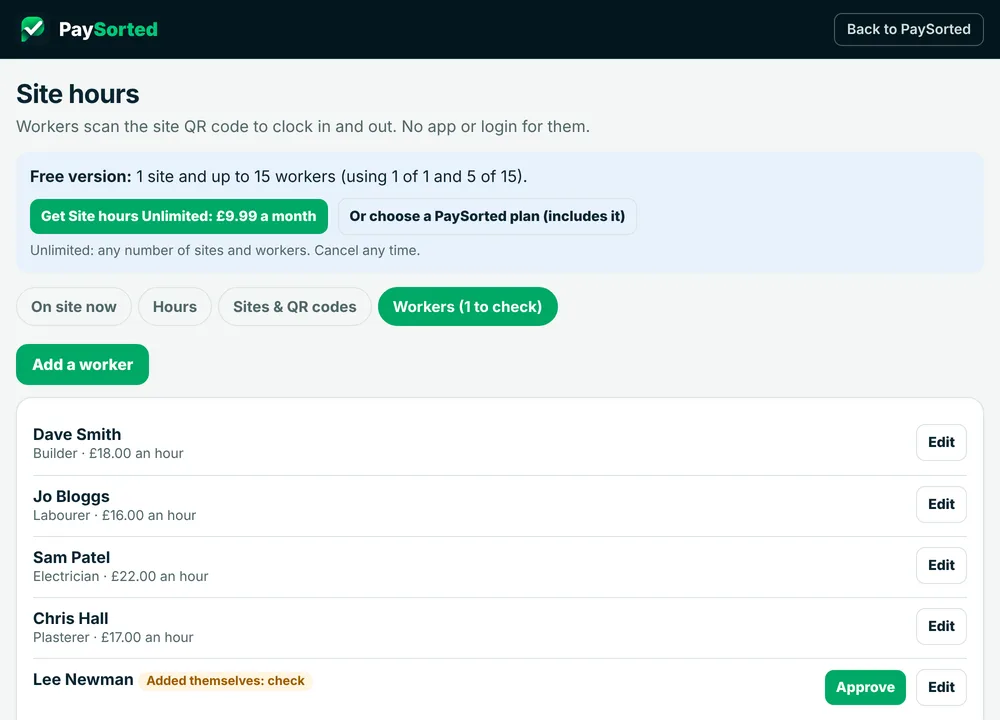
- Tap the Workers tab, then Add a worker.
- Type their first name and surname. (The names show on the clock-in page, so first name and surname is clearest.)
- If you want PaySorted to work out what their hours cost, add their hourly rate. This is optional and only you see it.
- Tap Save. Repeat for everyone.
Can't be bothered? Skip this step. Workers can tap I'm not on the list when they first scan, type their name, and clock in. You'll see them marked Added themselves: check: just tap Approve.
Step 4: Print the QR poster and put it up
- Tap Sites & QR codes, then Print QR poster.
- Print it on A4. If your browser blocks the pop-up, tap Allow and try again.
- Put it up where everyone arrives: the site cabin, welfare unit or gate. Somewhere out of the rain, or in a plastic sleeve.
3. What your workers do
The first time (about 20 seconds)
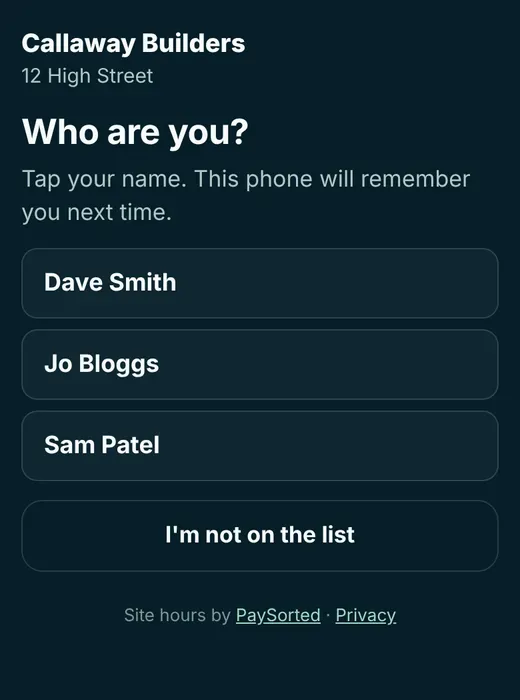
- Open the phone camera and point it at the poster. A link pops up: tap it.
- Tap their name.
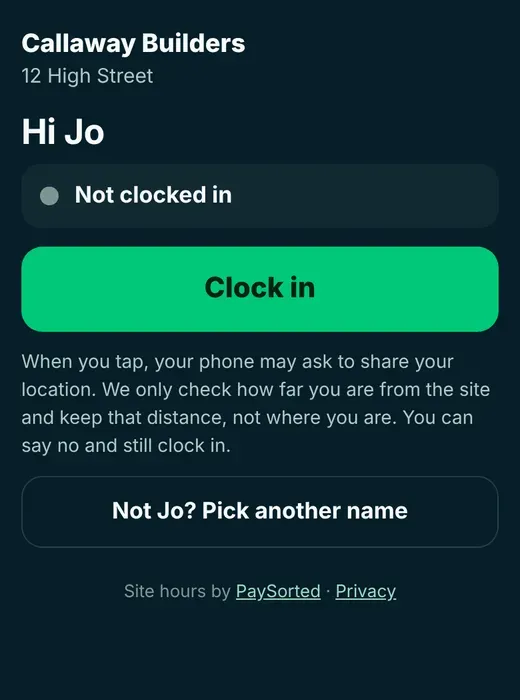
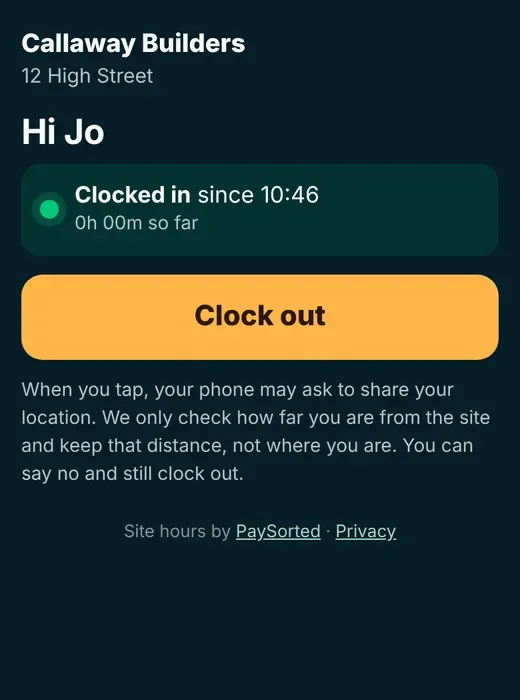
- Tap the big green Clock in button. If the phone asks to share location, tap Allow (or don't: they can still clock in).
Every day after that
Scan, tap Clock in. At the end of the day: scan, tap Clock out. The phone remembers who they are, so there's no picking names again.
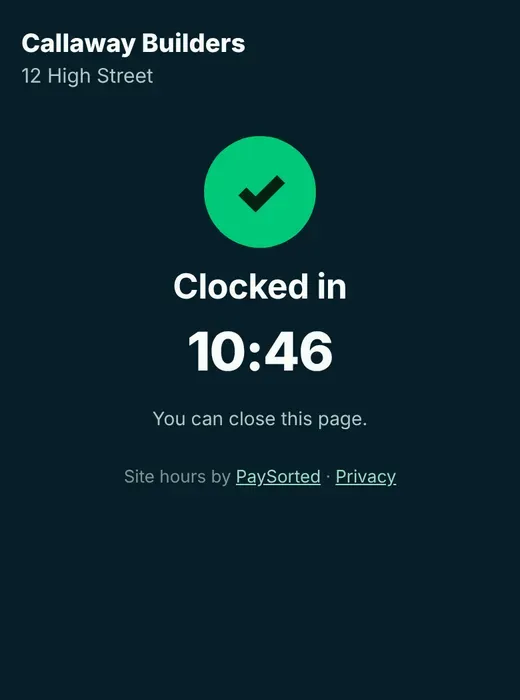
They see a big tick and the time, so they know it worked.
4. Checking and fixing hours
See who's on site now
Tap On site now to see who's clocked in, at which site and for how long.
See the week
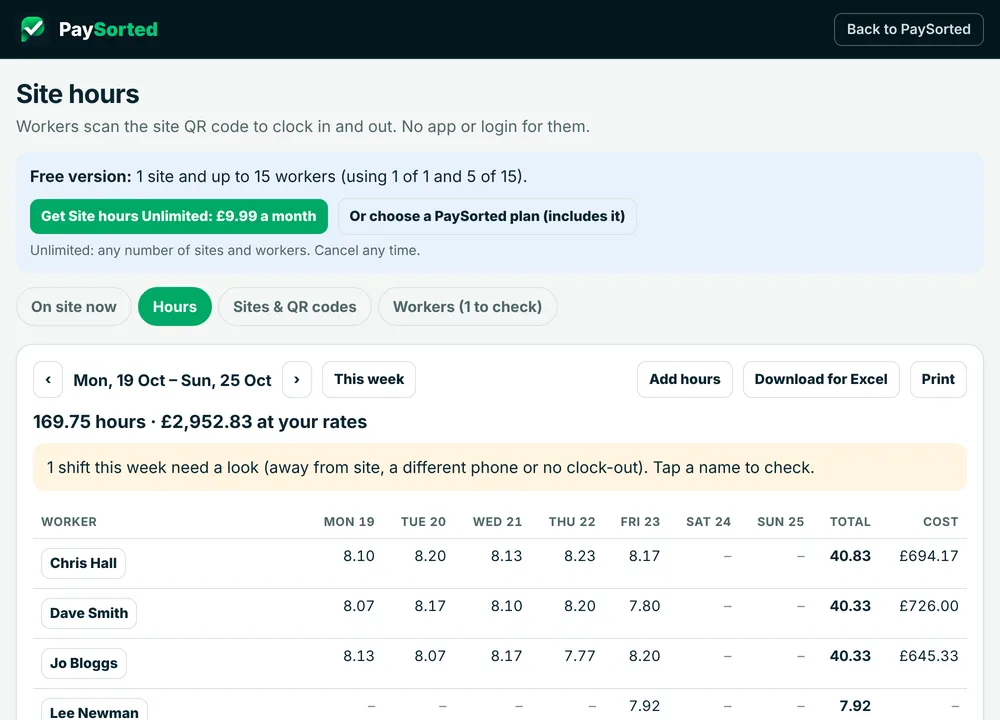
Tap Hours. You'll see each worker's hours for every day of the week, their total, and the cost if you added hourly rates. Use the ‹ › arrows to go back or forward a week.
Fix a missed clock-out, or add a break
- On Hours, tap the worker's name.
- Tap Edit next to the shift.
- Put in the right clock-out time, and the break in minutes (for example 30).
- Tap Save.
Every change is kept with your name and the original times, under Change history. Nothing is ever quietly overwritten.
Add hours by hand
If someone's phone died, tap Add hours on the Hours page, pick the worker, site and times, and tap Save. It's marked Added by office so it's clear it wasn't scanned.
5. What the warning labels mean
| Label | What it means | What to do |
|---|---|---|
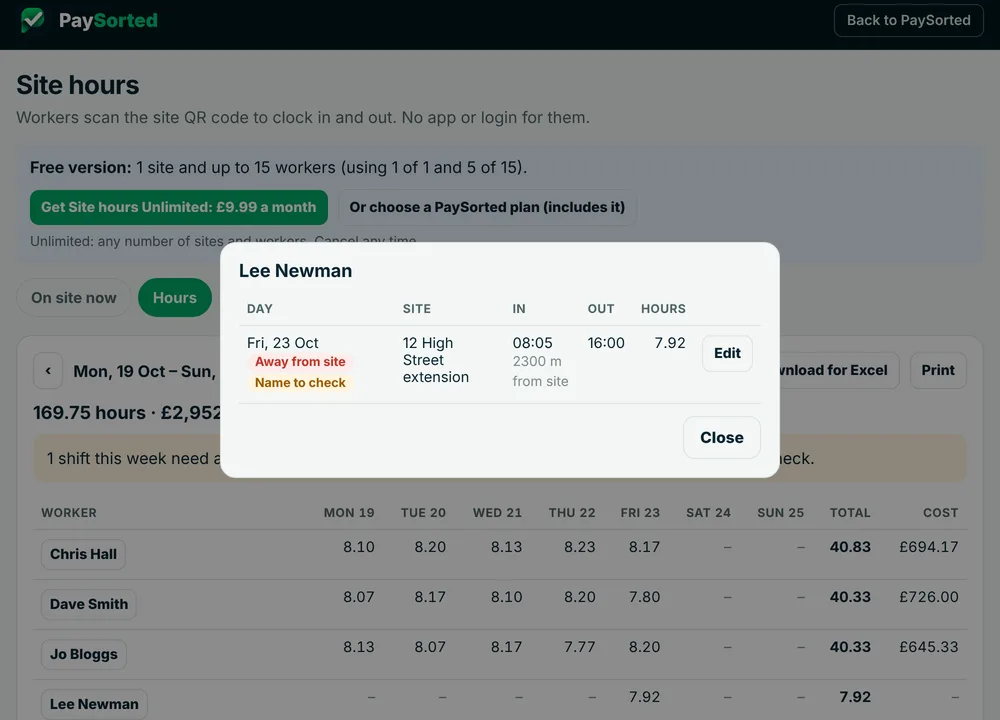
| Away from site | Their phone said it was further from the site than you allowed when they tapped. | Ask them. Phones can be out by a few hundred metres indoors. If they weren't on site, edit or delete the shift. |
| Different phone | They used a different phone from usual. Could be a new phone, or a mate clocking them in. | Ask them. If it's a new phone, open Workers, tap Edit, then Reset phone. |
| No clock-out / Not clocked out | They clocked in again without clocking out last time, or they've been in for over 14 hours. | Edit the shift and add the time they finished. |
| Name to check | They added their own name at the QR code. | Open Workers and tap Approve, or Edit to correct the spelling. |
| No location | The phone didn't share its location, or the site has no location set yet. | Nothing, usually. Set the site location if you want distance checks. |
| Out at another site | They clocked in at one site and out at another. | Check it's right. It may be fine if they moved sites. |
| Added by office | The shift was added by hand, not scanned. | Nothing: it's just so you know. |
6. Getting hours ready for payroll
- On Hours, pick the week.
- Fix anything flagged (see above).
- Tap Download for Excel. You get a spreadsheet file with every shift: worker, site, date, in, out, break, hours, rate, cost and any warnings. Send it to your bookkeeper or open it in Excel or Google Sheets.
- Or tap Print for a paper copy.
Hours are worked out from clock-in to clock-out, minus any break you add. A shift that runs past midnight counts on the day it started.
7. Problems and how to fix them
The phone camera won't scan the QR code
Make sure the camera is pointing straight at the code and the poster isn't creased or in glare. On older Android phones, open Google Lens or a QR scanner app. Or send them the link with Copy link.
A worker has no signal on site
They need a little signal to clock in. Ask them to step outside or near the gate. If it's impossible, add their hours by hand with Add hours.
Someone picked the wrong name
Open Workers, tap Edit on the person whose name was used, and tap Reset phone. Then fix or delete the wrong shift. Next time they scan, they pick their own name.
A photo of the QR code is going round
Open Sites & QR codes, tap Edit, then Make a new QR code. The old one stops working straight away. Print and put up the new poster.
Someone has left
Open Workers, tap Edit, then Switch off. Their hours are kept, and on the free version they no longer count towards your 15.
A worker got a new phone
Open Workers, tap Edit, then Reset phone. Their next clock-in sets the new phone.
A worker doesn't want to share their location
That's fine. They tap "Don't allow" and can still clock in. The shift is labelled No location.
Can my office staff or accountant see the hours?
Yes. Anyone you've added to your PaySorted account can see Site hours. Only the owner, an admin or office staff can change things, and only the owner or an admin can delete. Accountants can look but not change anything.
8. What's free and what isn't
- Free, for as long as you like: 1 site and up to 15 workers, with everything on this page.
- Site hours Unlimited, £9.99 a month: any number of sites and workers. Tap Get Site hours Unlimited at the top of the Site hours page. Cancel any time.
- Every PaySorted plan (from £14.99 a month): includes Site hours Unlimited, plus quotes, invoices that chase themselves, card payments and more. See plans.
- When you sign up you get the whole of PaySorted free for 30 days. If you don't choose a plan after that, Site hours keeps working on 1 site and 15 workers, and you can still see and download all your hours.
9. What to tell your workers
Copy this into your team's WhatsApp group:
More about how workers' information is handled: privacy notice.
Ready to try it? It takes 10 minutes.
Free for 1 site and up to 15 workers. Bigger crew? £9.99 a month for unlimited.